How to Write and Publish an Ebook with AI
AI Tapz Team · October 19, 2026
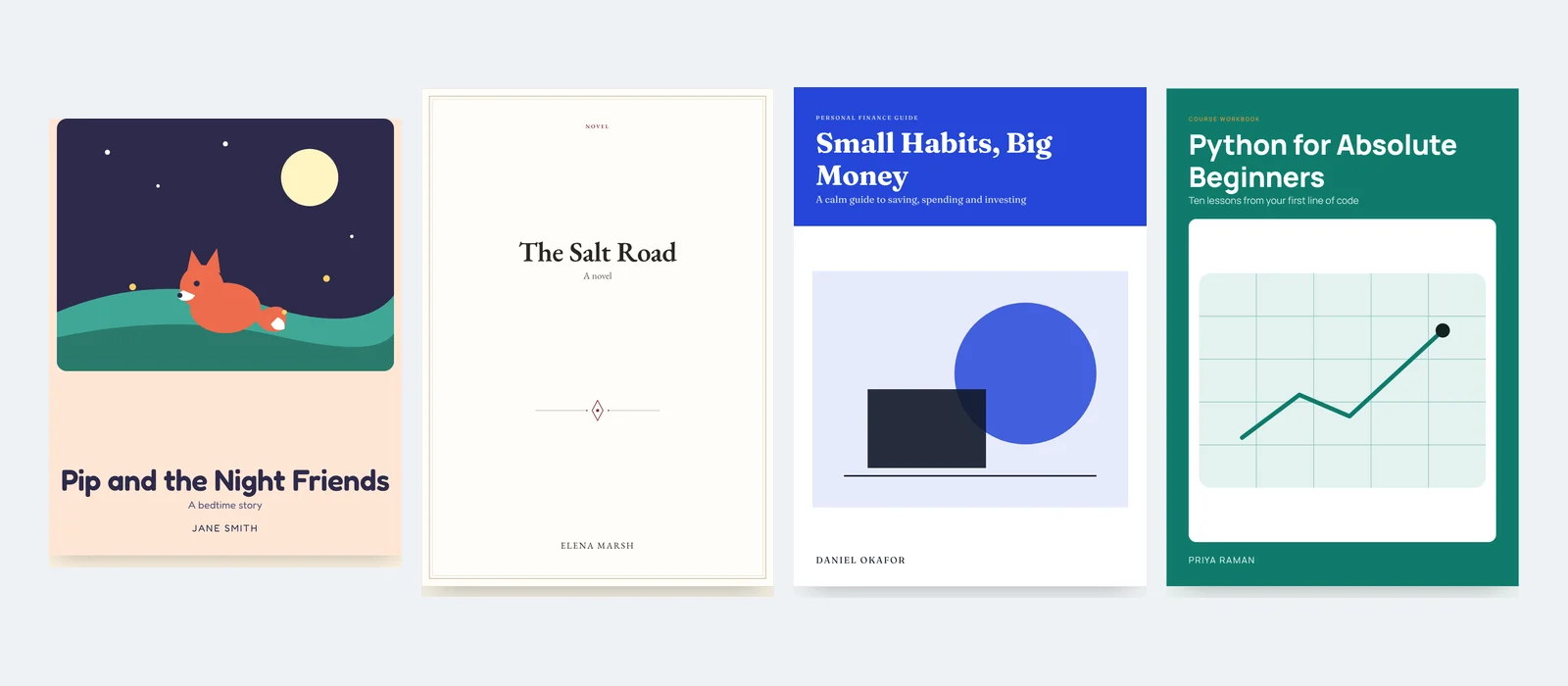
Most books never get written because the blank page is hard, and the ones that do often stall at the next step: layout, a cover, and the files a store will accept. The AI Ebook Maker covers all of it in one place. Here is how it works, step by step, and what you should still do yourself.
1. Say what kind of book it is
Start by typing the book type in your own words: a novel, a bedtime story, a biography, a science explainer, a course, a cookbook, poetry, anything. Add who it's for, then describe the book in a few lines: the story, the subject or the lessons, and anything you've already decided, such as names, length or language.
The type matters because the AI plans each kind of book the way it's really structured. A story gets an arc with characters and a turning point. A biography follows the life in order. A course gets lessons with key ideas and exercises. A children's picture book gets one scene per page, with a few short lines to read aloud.
2. Agree the plan before anything is written
The AI proposes a title, every chapter with what it will cover, a design and the back-cover blurb. Read it carefully, because this is the cheapest moment to change your mind. Ask for changes in the chat: another title, more chapters, a different ending, rhyming text, a younger reader. You see the most the book can cost before you go ahead.
3. Let it write and design the book
Choose the author name for the cover, a chapter length, and one of four designs:
- Classic, for novels, stories, memoirs and biographies.
- Modern, for non-fiction, business, self-help and science.
- Textbook, with key-idea boxes, exercises and answers.
- Picture book, with a simple illustration and a few big lines on every page.
You get a cover, a title page with the copyright notice and your dedication, a contents page, every chapter on its own page, and a back cover. That's up to 20 chapters, or 24 picture-book pages.
4. Make it yours
The book opens in your Library. Click any text to change it and click any picture to replace it with your own. Recolour the whole book at once, or ask the AI to rewrite a single page. To add a chapter you wrote yourself, paste your text and it takes the book's design. Pages can be moved anywhere.
This step is not optional. Read every page as an editor would. For biographies, history and science, check the facts: the AI is told never to invent quotes or figures, but it can be wrong or out of date.
5. Publish it
From the Library you can download:
- an EPUB for Kindle (through Amazon KDP), Apple Books, Kobo and Google Play Books;
- a paperback interior PDF in a real book size, such as 6 × 9 in or 8.5 × 8.5 in for picture books, with page numbers and an inside margin for the spine;
- a full paperback cover (back, spine and front on one sheet with bleed) sized from your page count and paper, with space left for the barcode.
One rule to know before you upload: Amazon KDP asks you to tell it when a book's text or images were generated with AI. Answer that question honestly when you publish.
Where to start
Open the AI Ebook Maker, type your book type and describe your idea. You can see the plan before paying anything. The other tools are in AI Services.